
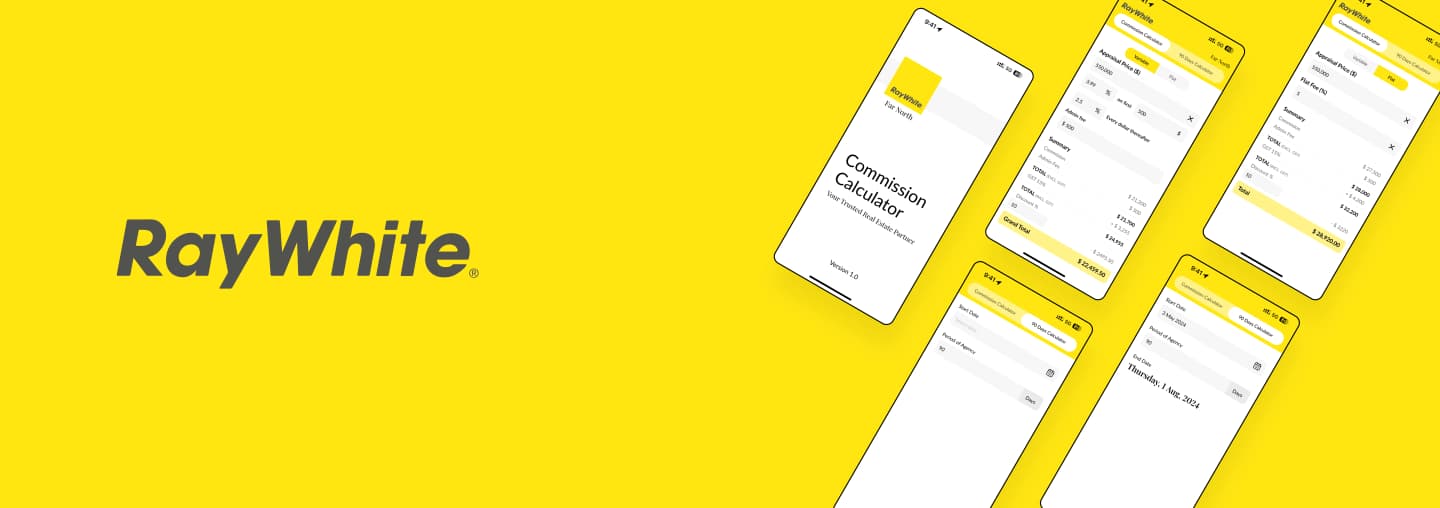
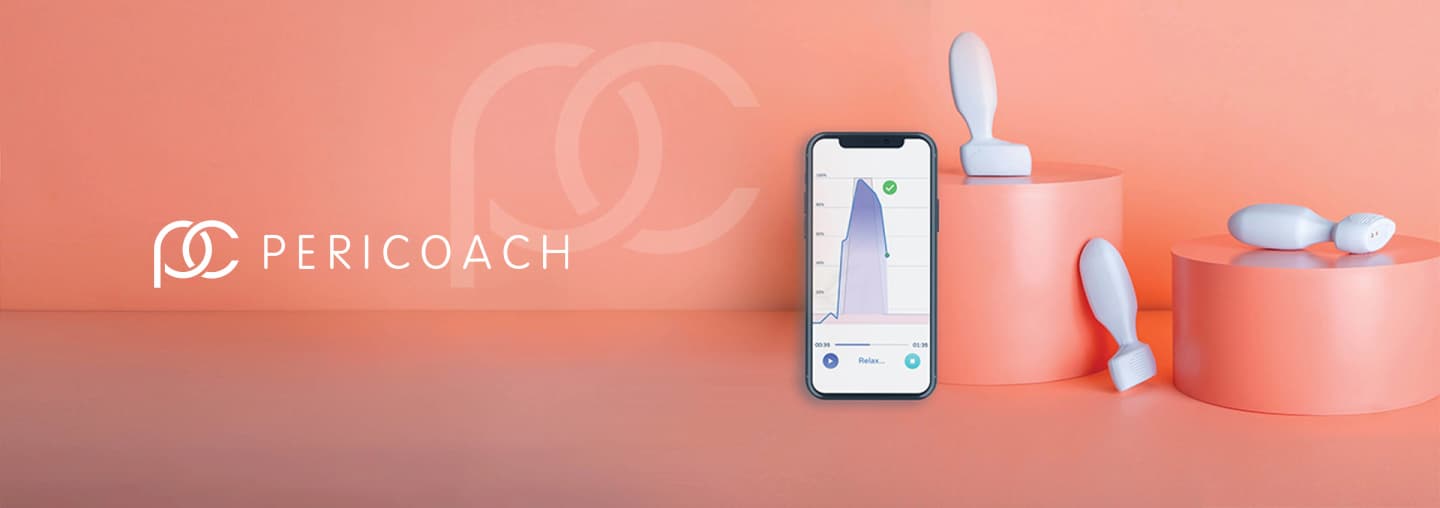

UI/UX design, often overlooked in its critical role, shares a common fate with testing in app development - it's considered a thankless job and often taken for granted. Unfortunately, many companies fail to grasp the pivotal importance of meticulous UI/UX design in the software development lifecycle. Like testing, UI/UX design is laden with immense responsibility. It serves as the cornerstone that shapes user interaction and experience, profoundly impacting the success of an application. Just as testing ensures functionality, UI/UX design ensures usability and satisfaction. It involves crafting interfaces that seamlessly guide users through intuitive experiences, fostering engagement and loyalty. Whether it's creating wireframes, prototypes, or conducting user research, UI/UX design demands meticulous attention to detail and a deep understanding of user needs. A top UI design company who comes onboard with you can provide a detailed and meticulous study about your UI flows and UX.
It's the art of blending aesthetics with functionality to deliver impactful digital experiences that resonate with users. Let’s see the top 7 UI design tools to use in 2024.
How to Choose the Best UI Design Tool
The choice of UI tool for your project holds the power to either propel it towards success or lead it to failure. Your interface serves as the conduit through which users engage with your app, website, or software, significantly influencing their experience and satisfaction. Therefore, it is crucial to consider the following tips when selecting a UI design tool for your design project.
- Will this platform contribute to meeting the team's objectives?
- What is its usability, and how fast can proficiency be attained?
- Is it cost-effective for your organization?
- To what extent does it facilitate collaboration among team members?
- How seamlessly does it integrate with other UI/UX design tools?
- On which operating systems is the software compatible?
- Does it support adherence to essential UX design principles, including user needs, usability, accessibility, and visual aesthetics?"
Top 7 UI Design Tools to use in 2024
FIGMA
Figma provides collaborative features, real-time editing, and cloud-based platform, robust prototyping, responsive design, enabling seamless teamwork and efficient design iteration. Its intuitive interface and smart tools streamline workflows, fostering creativity and efficiency. With seamless integration and accessibility across devices, Figma empowers teams to create, iterate, and deliver exceptional digital experiences.
Pros of Figma:
Figma's Auto layout feature for responsive design allows designers to effortlessly adapt layouts across various screen sizes, optimizing user experiences across platforms.
Figma's multiuser capabilities ensures effortless accessibility and synchronization across devices, empowering designers to work anytime, anywhere. Figma's branching feature allows designers to create and explore alternative design versions simultaneously, facilitating experimentation and iteration.
The platform's intelligent design system enables efficient creation and management of design components, ensuring consistency and scalability throughout projects and teams. Figma's library feature enables designers to create, store, and share reusable design components, ensuring consistency and efficiency across projects.
It’s robust prototyping tools enable rapid iteration and validation of design concepts, fostering innovation and agility within teams. Figma's integrations with popular design and collaboration tools enhance workflow efficiency, streamlining processes and maximizing productivity.
Cons of Figma:
No Internet No Figma. While using figma you need to be always (almost) online to be working.
You must be aware of who did the last edit. Even though there is a Version Control Function on Figma.
When you put your file in The Draft, everyone can Claim your file as the owner. So be wise.
A helpful tip for using Figma is to utilize its component system effectively. By creating and organizing reusable components in your design libraries, you can ensure consistency, speed up your workflow, and easily make updates across your designs.
Adobe XD
Adobe XD is a powerful tool for UI design, offering intuitive vector-based design tools and prototyping features. Designers can create visually appealing user interfaces for websites, mobile apps, and more, using its comprehensive set of tools for layout design, asset management, and interactive prototyping. With features like responsive resize and real-time collaboration, Adobe XD streamlines the UI design process, allowing designers to iterate quickly, maintain consistency, and create engaging user experiences across various digital platforms.
Pros of Adobe XD:
Adobe XD offers responsive resize for screen adaptability, Repeat Grid for efficient layout creation, component states for interactivity, and robust prototyping capabilities. These features streamline UI design, ensuring consistency and enhancing user engagement.
Adobe XD seamlessly integrates with other Adobe Creative Cloud applications such as Photoshop and Illustrator. This integration streamlines workflows by allowing designers to easily import assets and designs from other Adobe tools, enhancing efficiency and collaboration.
Adobe XD provides powerful vector-based design tools that allow for precise and scalable designs. These tools enable designers to create high-fidelity prototypes and user interfaces with ease.
Adobe XD offers robust prototyping capabilities, allowing designers to create interactive prototypes with advanced animations and transitions. XD's prototyping features enable designers to create realistic user experiences for testing and feedback.
Cons of Adobe XD:
Unlike some competitors, Adobe XD's compatibility is primarily with macOS and Windows, which may be restrictive for designers using other operating systems like Linux.
While XD's interface is user-friendly, mastering all its features, especially for beginners, may take some time and effort compared to simpler tools.
While Adobe XD has a growing collection of plugins, it's not as extensive as some other design tools, which may limit customization and workflow optimization for some users.
Adobe XD users is to utilize the Repeat Grid feature effectively. Instead of manually duplicating elements, use Repeat Grid to quickly create and adjust repetitive UI elements like lists, grids, or card layouts. This not only saves time but also ensures consistency throughout your design, enhancing efficiency and streamlining your workflow.
[
Looking to create intuitive and seamless design for your project? Connect with design experts at Nimblechapps.
Contact us
sketch
Sketch is a vector-based design tool tailored for UI/UX designers. It offers an intuitive interface with powerful features like artboards for organizing screens, symbols for reusable elements, and a vast library of plugins for enhanced functionality. With its focus on simplicity and efficiency, Sketch enables designers to create high-fidelity prototypes and user interfaces for websites, mobile apps, and more.
Pros of Sketch:
Sketch is a native Mac application, which means it's optimized for macOS and integrates seamlessly with other Mac software and services. This can provide a more cohesive experience for Mac users compared to other cloud based applications.
Sketch has a robust ecosystem of third-party plugins that extend its functionality in various ways, from prototyping to asset management.
Sketch's symbol management features are highly regarded, allowing designers to create and maintain libraries of reusable components with ease.
Since Sketch is a desktop application, it can be used offline without an internet connection. This can be advantageous for users who frequently work in environments with limited or unreliable internet access, as they can continue designing without interruption.
Cons of Sketch:
Sketch is only available for macOS, which means users on Windows or Linux operating systems cannot access it natively.
While Sketch does offer collaboration features through plugins like Abstract or Zeplin, its collaboration capabilities are not as seamless as other design tools built-in real-time collaboration.
Sketch users is to utilize artboards effectively. Instead of creating separate files for each screen or layout variation, use artboards to organize your designs within a single document. This helps maintain a cohesive workflow, allowing you to easily navigate between different screens and versions while keeping your designs organized and manageable.
InVision
InVision is a powerful platform for UI design, offering a suite of tools tailored for designers and teams. With features like prototyping, collaboration, and design management, InVision streamlines the UI design process from concept to implementation.
Designers can create interactive prototypes, gather feedback from stakeholders, and iterate quickly on their designs. Additionally, InVision's design system management capabilities enable teams to maintain consistency and scalability across projects.
Pros of InVision studio:
InVision DSM is a powerful tool for creating and managing design systems, allowing teams to maintain consistency and scalability across projects.
InVision integrates with a wide range of third-party tools and services, including project management, collaboration, and prototyping tools. This extensive integration ecosystem allows designers to seamlessly connect InVision with their existing workflow and tools, enhancing productivity and efficiency.
InVision's user interface and workflow are specifically designed for designers, with a focus on providing tools and features that cater to the needs of UI/UX designers.
Cons of InVision studio:
InVision Studio may require more time and effort to master its features and workflows. InVision Studio may have a steeper learning curve compared to other tools particularly for users who are already familiar with other design tools,
While InVision Studio offers basic vector editing tools for creating UI designs, it may not be as robust or feature-rich as other design tools in terms of vector manipulation capabilities.
InVision Studio's plugin ecosystem may not be as extensive or mature
Using InVision, Creating a different states (such as hover or active) for your components, you can design more interactive and dynamic prototypes.
AXURE RP
Axure RP is a powerful prototyping and wireframing tool tailored for UI/UX designers. With its robust feature set, including advanced interactions, dynamic content, and conditional logic, Axure RP enables designers to create highly interactive and functional prototypes.
Its drag-and-drop interface and comprehensive widget library streamline the design process, allowing designers to visualize and test complex user experiences before development. Axure RP is favored for its ability to create prototypes with rich interactions and simulate real-world usage scenarios, making it a valuable tool for UI design.
Pros of Axure RP:
Axure RP enables designers to create prototypes with dynamic content, such as data-driven lists, dynamic panels, and repeaters. This allows for more realistic and customizable prototypes, particularly for complex UI designs that involve dynamic data or content generation.
Axure RP allows designers to incorporate conditional logic and variables into their prototypes, enabling dynamic interactions and personalized experiences based on user input or system states.
Axure RP offers more advanced capabilities for creating interactions and animations compared to other design tools.
Axure RP provides a wide range of prototyping features, including adaptive views, conditional flow, and variables, allowing designers to create prototypes that simulate real-world user interactions and workflows more accurately.
Cons of Axure RP:
Axure RP is primarily a desktop application, available for Windows and macOS. This limits its accessibility compared to other web based design tools.
Its extensive feature set and complex interactions may require more time and effort to master. Not easy to learn for the beginners.
Using Axure RP, Creating and utilizing Masters for recurring UI components or layout structures, you can ensure consistency across your prototype and easily make global changes whenever needed. This approach saves time, enhances efficiency, and maintains design coherence throughout your project.
Proto.io is a versatile UI design tool that specializes in high-fidelity prototyping for web and mobile applications. With its intuitive interface and robust feature set, including drag-and-drop functionality, interactive animations, and device-specific previews, Proto.io enables designers to create realistic and interactive prototypes without writing code. It offers a comprehensive library of UI components and allows for seamless collaboration and feedback collection, making it an invaluable tool for visualizing and testing user experiences before development.
Pros of Proto.io:
Proto.io specializes in high-fidelity prototyping, allowing designers to create interactive and realistic prototypes with advanced animations and transitions. This enables designers to convey the look, feel, and functionality of the final product more accurately compared to other design tools with limited prototyping capabilities.
Proto.io offers device-specific previews, allowing designers to simulate and test prototypes on various devices and screen sizes.
Proto.io offers a more integrated and collaborative environment for designing and iterating on prototypes compare to other design tools.
Cons of Proto.io:
its focus primarily on prototyping rather than being a full-fledged design tool. Due to that it’s may lack of the comprehensive design features found in other design tools.
Using proto.io creating a components, and device specific layouts is not more efficient compared to using a single tool like Figma, Adobe XD, sketch for both design and prototyping.
Proto.io offers a comprehensive set of pre-built interactive components. Customizing these components to fit your project can save time and effort, allowing you to focus on refining the overall user experience of your prototype.
Balsamiq is a rapid wireframing tool designed to facilitate quick and low-fidelity mockup creation for UI/UX designers. Its intuitive drag-and-drop interface allows users to sketch out interface ideas and concepts easily. With a focus on simplicity and speed, Balsamiq prioritizes functionality over aesthetics, using rough, hand-drawn elements to convey design concepts. It's commonly used in the early stages of the design process to communicate ideas and iterate rapidly before moving on to more detailed design work.
Pros of Balsamiq:
Balsamiq's simple drag-and-drop interface enables quick and low-fidelity prototyping, allowing designers to rapidly iterate on design concepts and explore multiple ideas without investing too much time in detailed design work.
ith its rough, hand-drawn elements, Balsamiq prioritizes functionality over aesthetics. This allows designers to focus on the layout, structure, and flow of the user interface without getting distracted by visual design details.
Balsamiq supports collaboration by allowing multiple team members to work on the same project simultaneously.
Cons of Balsamiq:
Balsamiq's focus on rapid wireframing means it lacks some of the advanced design and prototyping features found in other design tools.
While Balsamiq excels at creating low-fidelity wireframes quickly, it may not be as flexible as other design tools in terms of design customization and layout options.
Using Balsamiq's you can design a simple, rough sketches to represent elements and interactions, allowing you to iterate quickly and gather feedback on the usability of your designs. Remember, the goal is to communicate ideas effectively, not create polished visual designs always.
Conclusion
Various tools in the market cater to different aspects of UX/UI design, from wireframing to customer journey mapping. Some emphasize design, while others offer all-in-one solutions. Regardless of your project stage, there's a quality UX/UI design tool to streamline your workflow and foster collaboration within your team. With tools dedicated to each aspect of the design process, designers can find the right resources to simplify tasks and enhance communication, ultimately leading to more efficient and effective design outcomes.
Stay creative, stay curious, and most importantly, keep designing!